

e-copedia hjælpecenter
Authentication and tokens
Learn how to obtain the AppSecretToken and AgreementGrantToken required to authenticate your app and connect to e-conomic accounting data.
This guide walks you through how to obtain both.
AppSecretToken: identifies your app and is created once when you register your app.
AgreementGrantToken: identifies the specific accounting agreement your app is accessing. It is issued by the e-conomic customer who installs your app.
Obs
💡 TIP: Both tokens are required on every API request. Neither token alone is sufficient to authenticate.
The quick guide
Sign in and create your first app via the 'Apps' tab (Set role to SuperUser, ignore modules part, store AppSecretToken in a safe place)
An accounting user must grant your app access via the "InstallationURL" found in the Tokens section for your app (this results in an AgreementGrantToken)
Connect to e-conomic accounting data via REST or OpenAPI using the two tokens.
Note for administrators
For administrators granting an app access requires you to first click "Administer" on the accounting agreement you want to generate a token for, before you can follow the Installation URL. More info here.
The full guide
Requisites for token auth (the guide will take you through this)
Developer agreement: Developer agreements are used to manage your apps, including token and market details.
An app with proper permissions: The end-users must posess the permissions required by your app. Be sure to read how permissions and roles impact which entities your app can access.
Accounting Data: Accounting data lives on an accounting agreement. Quick link to create a sandbox. See the FAQ at the bottom of this page for more info on sandboxes and trials.
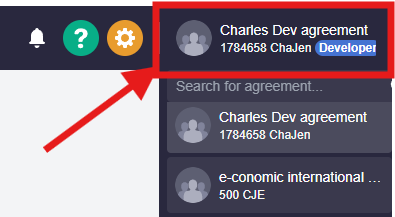
Step 1 – Sign up for a Developer Agreement
Before you can create an app or obtain tokens, you need to sign up for a free developer agreement on the e-conomic. Your developer agreement is where you manage all your apps and their associated tokens.
Obs
💡 TIP: If the developer agreement was created with an already existing Visma connect user, the newly created developer agreement will show up in your company overview after a succesful relog.
Step 2 – Create an App and retrieve your AppSecretToken
Each app you register is assigned a unique AppSecretToken.
In your developer agreement, navigate to the Apps section and click New App.
Fill in your app name, description, and select the role that matches the level of access your app requires.
Once the app is created, your AppSecretToken is displayed on screen.
Copy the AppSecretToken immediately and store it somewhere safe.
Your AppSecretToken is only shown once. If you lose it, you must generate a new one.
-
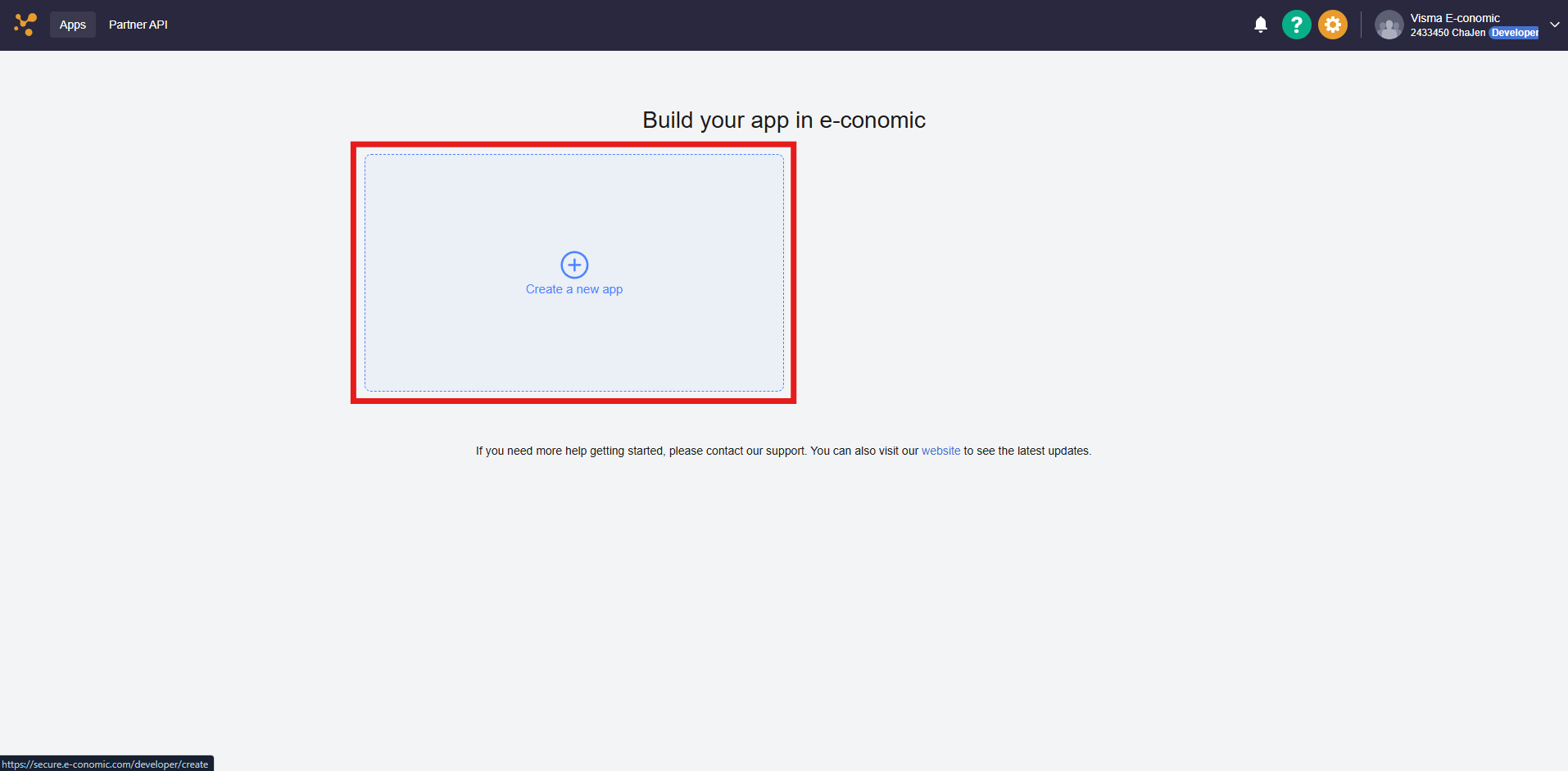
Click "Create new app". 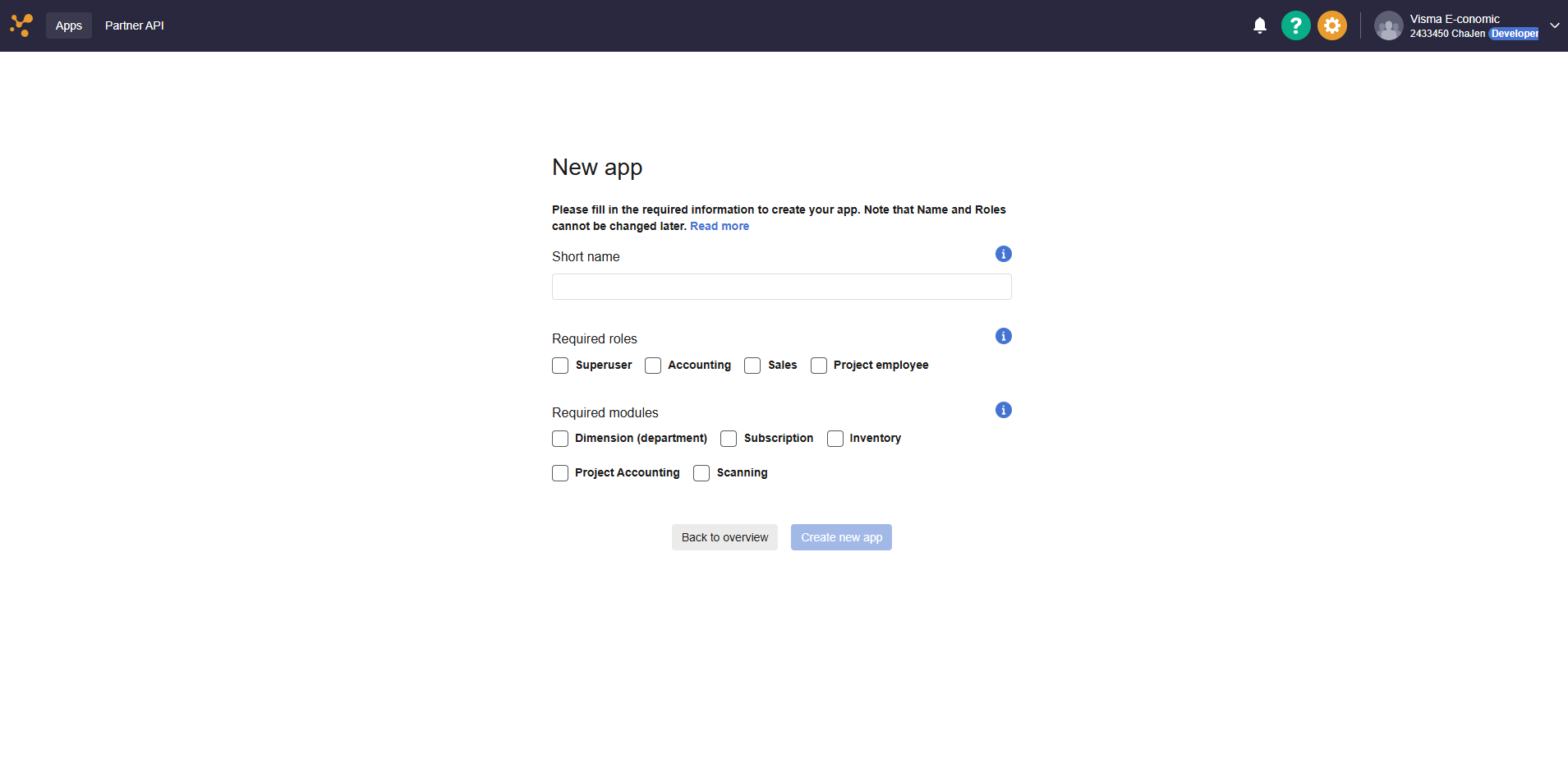
Give your app a name and select required roles and permissions 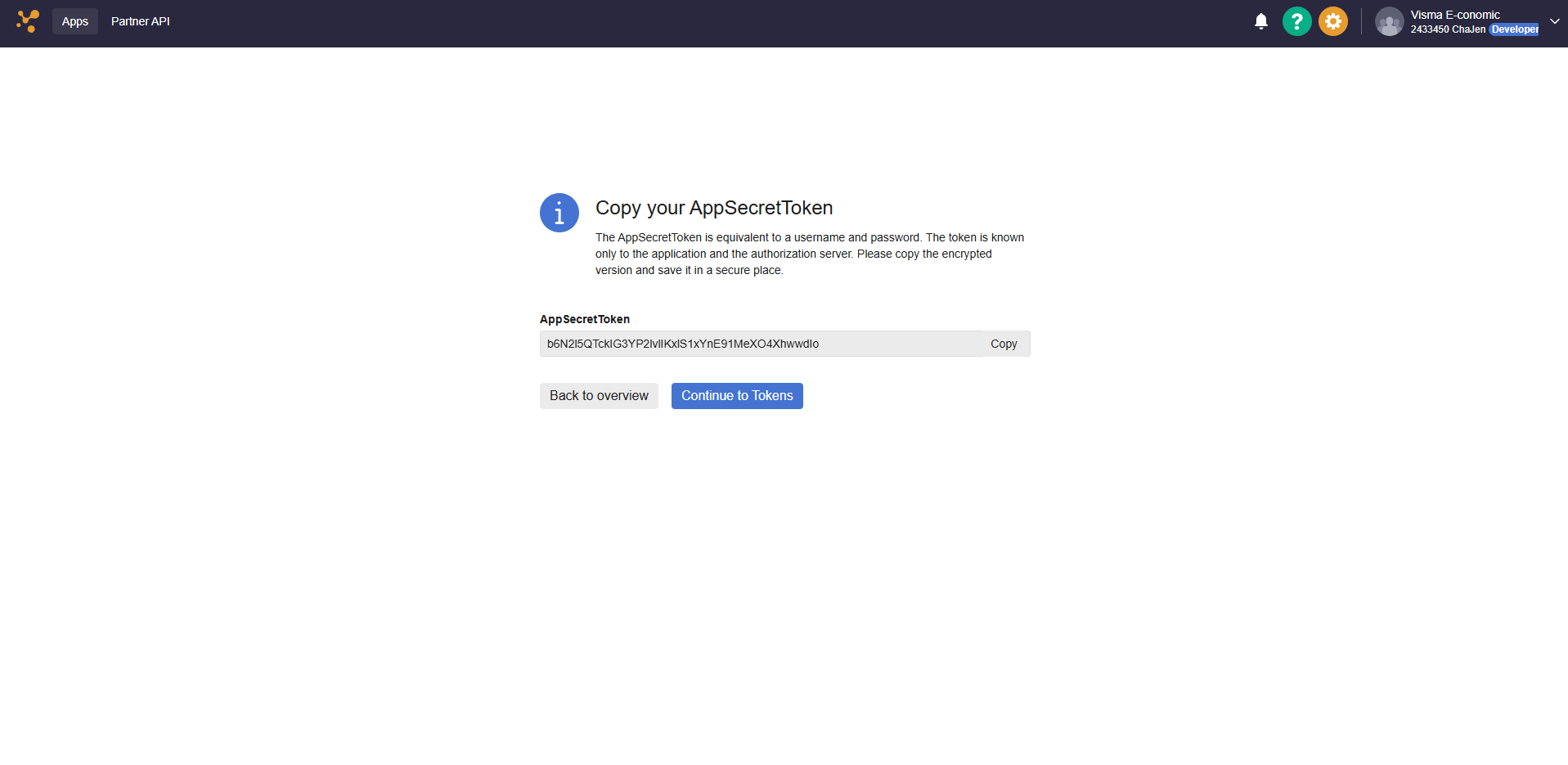
Make sure you save your AppSecretToken - If lost, a new one can be generated
Step 3 – Retrieving an AgreementGrantToken
The AgreementGrantToken is issued by the e-conomic customer (the accounting user) when they install your app on their agreement. You have a couple of approaches to retrieving the AgreementGrantToken.
Manual retrieval — via the InstallationURL
This approach is suitable for development, testing, or scenarios where you are setting up access for a specific customer one at a time.
Navigate to the Tokens section for the app and locate your InstallationURL.
Share the InstallationURL with the accounting user.
The accounting user clicks the link while logged in and grants access to your app.
After granting access, the accounting user is shown their AgreementGrantToken.
The accounting user copies the Agreement Grant Token and shares it with you.
Automated retrieval — via a Redirect URL
This approach is recommended for production integrations where you want to retrieve the AgreementGrantToken automatically without requiring the user to copy and paste it.
Navigate to the Tokens section for the app and locate the redirectURL field. Fill in your RedirectURL. This must be an endpoint on your server that can receive the token. Afterwards we'll generate the proper installationURL that can be used to share with the accounting user as in the manuel approach.
After the accounting user grants access, e-conomic redirects them to your Redirect URL with the AgreementGrantToken appended as a URL parameter: token=xxx.
Your server reads the token from the URL parameter and stores it securely.
Obs
💡 TIP: For fully automated token management at scale, you can use the e-conomic Partner API to retrieve and keep your AgreementGrantTokens up to date.
Step 4 – Authenticate your API requests
Once you have both tokens, include them as headers on every request to the API.
X-AppSecretToken: your AppSecretToken
X-AgreementGrantToken: the AgreementGrantToken for the accounting user
Content-Type: application/json
Obs
💬 OBS We do not support URL parameter-based authentication. Tokens must always be passed as request headers.
To verify that your tokens are working, make a GET request to:
https://restapi.e-conomic.com/self
A successful response confirms that both tokens are valid and your app has access to the agreement.
Var denne artikel nyttig?
Bliv e-conomic Insider